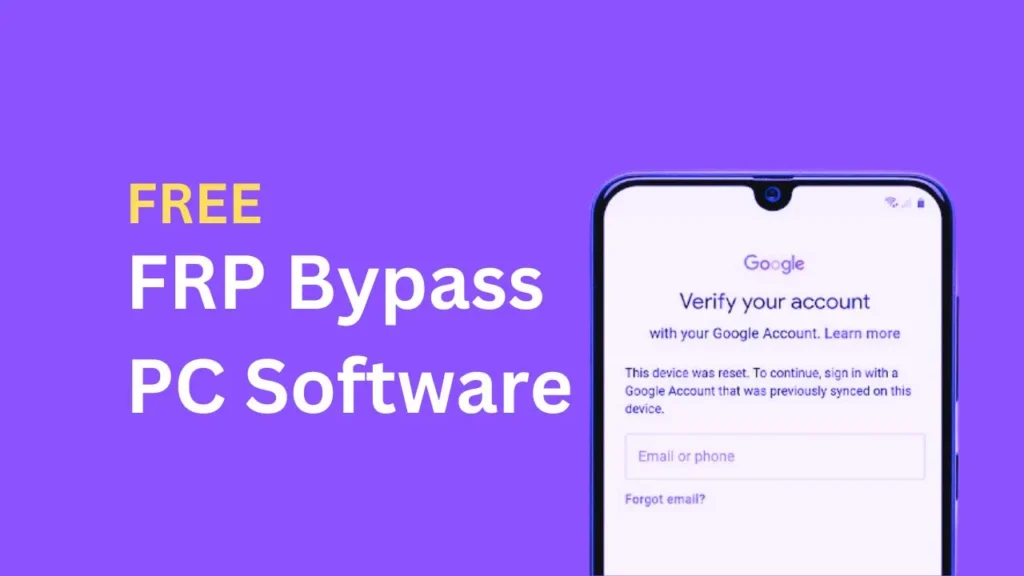
Forgot your Google account after a factory reset? You’re not alone. Many users face this frustrating lock called FRP (Factory Reset Protection). That’s where UnlockJunky comes in a remote unlocking service that helps you regain access to your device in minutes.
UnlockJunky supports Samsung, Motorola, and ZTE devices and promises an average unlock time of just 5 minutes, all done online from the comfort of your home.
Table of Contents
What Is UnlockJunky?
UnlockJunky is a remote FRP bypass service that helps users unlock their Android devices when they’re stuck at the Google verification screen. It’s especially useful if:
- You forgot your Google login credentials
- Bought a second-hand phone that’s locked
- Reset your phone and can’t get past the FRP screen
They operate Monday to Saturday, 7:00 A.M – 4:00 P.M PST, and offer live technician support during the process.
Requirements to Use UnlockJunky
To bypass FRP using UnlockJunky, you’ll need:
- A Windows PC or Mac
- A USB cable to connect your phone
- Internet connection
- Your device brand and model info
- A PayPal account or card for payment
- The USB Redirector software (provided by UnlockJunky)
Is Remote FRP Unlocking Safe?
Yes, UnlockJunky is considered safe and legit by many users and review platforms. Here’s why:
- Uses secure payment via PayPal
- Offers live technician support
- Doesn’t require sending your phone anywhere
- Has a high success rate and positive user reviews
Still, always be cautious and do your own research before using any online service.
How to Use UnlockJunky for FRP Bypass
Follow these simple steps:
- Visit UnlockJunky’s website
- Choose your device brand, model, and unlock type
- Make payment securely via PayPal
- Download USB Redirector (link sent after payment)
- Connect your phone to your PC using a USB cable
- Start a live chat with the technician
- Wait 5–15 minutes while they unlock your device
- Done! You can now use your phone again
Pros and Cons
| Pros | Cons |
|---|---|
| Fast unlock (5–15 mins) | No free trial |
| Works remotely from home | Limited to supported brands |
| Live technician support | Requires PC and internet |
| Secure payment via PayPal | Paid service (around $25) |
If you're looking for free PC software, check out SamFw Tool.
FAQs
Samsung, Motorola, ZTE, LG, and more.
Yes, it works on both Windows and macOS.
Yes, it’s used only during the unlock process and can be deleted afterward.
Most unlocks are completed in 5–15 minutes.
Final Thoughts
UnlockJunky is a great option if you’re locked out of your Android device and need a quick, remote solution. With thousands of successful unlocks and a user-friendly process, it’s worth considering especially if you’re not tech-savvy.
Have you ever used a remote unlock service before? If yes, share your experience in the comments below. If not, this guide might be your first step to unlocking your phone with ease.