Managing and servicing Android smartphones often requires specialized utility software to handle tasks ranging from basic firmware flashing to advanced device unlocking. For technicians and advanced users,having a reliable, all-in-one software solution streamlines daily maintenance workflows.
A.N.TOOL v4.6 has emerged as a popular utility designed to assist users with various Android device management tasks. In this comprehensive guide, you will learn what A.N.TOOL v4.6 offers, its key features, system requirements, a step-by-step installation walkthrough, and how to use it safely and effectively.
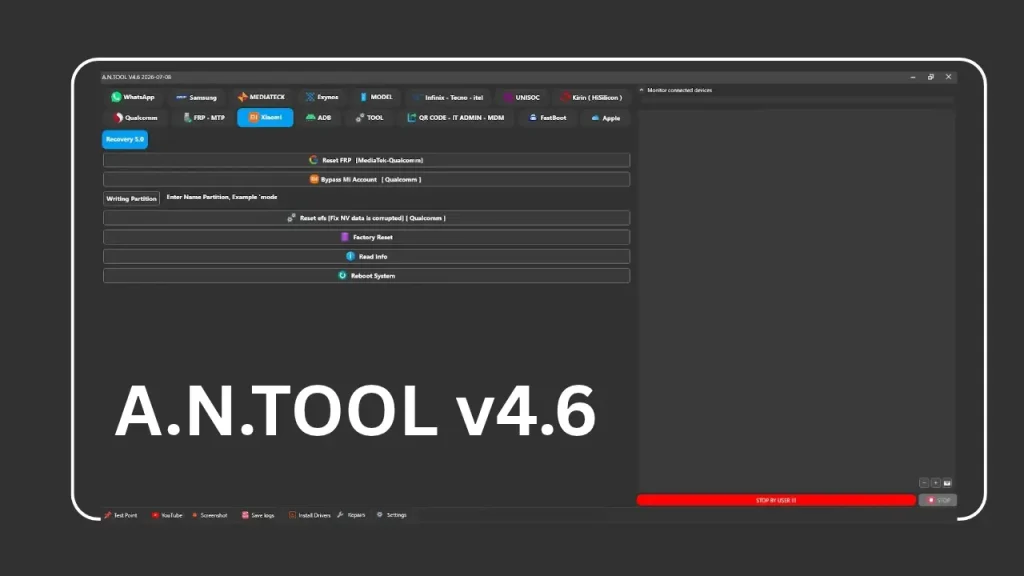
Table of Contents
What Is A.N.TOOL v4.6?
A.N.TOOL v4.6 is a specialized Windows-based software utility created for Android device servicing,maintenance, and troubleshooting. Its main purpose is to provide technicians and advanced mobile enthusiasts with a centralized interface to perform common maintenance operations on supported Android smartphones and tablets.
The software addresses common challenges faced during device servicing, such as bypassing Factory Reset Protection (FRP), managing firmware partitions, flashing device software, and clearing user data securely. By combining multiple repair and diagnostic functions into a single application, A.N.TOOL v4.6 eliminates the need to juggle several standalone utility scripts or disjointed manufacturer tools. Its intended users include mobile repair technicians, hobbyists, and developers working with Android hardware.
Key Features of A.N.TOOL v4.6
A.N.TOOL v4.6 includes a robust set of features tailored for efficient Android device handling. Here are the primary functionalities built into this version:
- Multi-Brand Device Support: Designed to interface with a wide range of popular Android chipsets and manufacturer platforms, allowing technicians to service diverse hardware models from a single program interface.
- FRP Bypass Operations: Provides streamlined routines to bypass Factory Reset Protection security locks on supported devices, assisting users who have forgotten their Google account credentials after a factory reset.
- Firmware Management and Flashing: Enables users to load, verify, and flash stock firmware packages, helping recover soft-bricked devices or update operating system software.
- Partition and Data Operations: Offers options to back up, restore, or wipe specific device partitions,ensuring precise control over user data and system storage.
- User-Friendly Interface Layout: Organizes complex command-line functions into an accessible graphical user interface (GUI) with clear operational buttons and status logs.
Requirements and Prerequisites
Before downloading and running A.N.TOOL v4.6, ensure your workstation meets the necessary technical prerequisites:
- Operating System: Windows 10 or Windows 11 (64-bit recommended) with administrative privileges.
- Hardware Specifications: At least 4 GB of RAM, a dual-core processor, and sufficient free disk space for temporary extraction files and firmware packages.
- Drivers and Dependencies: Appropriate USB device drivers (such as MediaTek VCOM drivers,Qualcomm USB drivers, or manufacturer-specific ADB and Fastboot drivers) must be installed on your Windows system for proper device communication.
- Permissions: Administrative access is required to execute the setup installer and allow the application to interact with system USB ports.
How to Download A.N.TOOL v4.6
To obtain the official and secure release of A.N.TOOL v4.6, follow these guidelines:
File Password: gsmyogesh.com
Login Details:
Username: BIBOCRACK2
Password: 112233
- Navigate to the official GitHub repository or verified developer release page associated with the project.
- Locate the releases section in the repository sidebar to find the most up-to-date stable build of version 4.6.
- Download the compressed archive file (typically in .zip or .rar format) provided in the release assets.
- Avoid downloading setup files from unverified third-party file-sharing sites to protect your system from modified or malicious executables.
How to Install A.N.TOOL v4.6
Setting up A.N.TOOL v4.6 on your Windows computer is straightforward. Follow these step-by-step instructions:
- Extract the Archive: Locate the downloaded .zip file of A.N.TOOL v4.6, right-click it, and select “Extract All” or use an extraction utility like 7-Zip to unpack the contents into a dedicated folder.
- Disable Antivirus Temporarily (If Required): Some security software may falsely flag utility software components or scripts as potential risks. Temporarily pause your antivirus real-time protection if installation is blocked, ensuring you downloaded from the trusted official repository.
- Run the Installer: Open the extracted folder, locate the main executable file (usually named ANTerminal.exe or AN_Tool_v4.6.exe), right-click on it, and select “Run as administrator”.
- Complete Setup Prompts: Follow any on-screen installation prompts to finalize the file placement and shortcut creation on your desktop.
- Verify Installation: Launch the application from your desktop shortcut to ensure the graphical user interface opens successfully without missing dependency errors.
How to Use A.N.TOOL v4.6
Once installed, using A.N.TOOL v4.6 requires proper connection setup and careful navigation of its features:
- Prepare Your Android Device: Power off your target Android device. Depending on the operation you intend to perform (such as FRP bypass or flashing), boot the device into the appropriate mode (e.g.,Fastboot mode, EDL mode, or Meta mode) using the correct hardware button combinations.
- Connect to Computer: Connect your device to your Windows PC using a high-quality USB cable.Ensure that the device is securely recognized by checking the Windows Device Manager for proper driver status.
- Launch the Tool: Open A.N.TOOL v4.6 with administrator privileges.
- Select Operation Tab: Navigate through the application interface tabs to choose the specific function you require, such as device info reading, FRP reset, or firmware flashing.
- Execute Command: Click the designated action button. Monitor the application’s live log window for progress updates and success confirmation messages. Disconnect the device only after the process finishes completely.
Credits and Acknowledgements
A.N.TOOL v4.6 is developed and maintained by its primary creators and open-source contributors within the developer community. We acknowledge the dedicated work of the developers who continuously update the tool to support new device architectures and security patches. Users are encouraged to visit the official GitHub repository for complete contributor lists, license details, and project documentation.
Troubleshooting: Common Problems and Solutions
While working with utility software, you may occasionally encounter setup or operational hurdles. Here are common issues and their solutions:
- Device Not Recognized by the Tool: This usually occurs due to missing or outdated USB drivers.Solution: Reinstall the correct manufacturer drivers (MediaTek, Qualcomm, or Samsung USB drivers) and reconnect the USB cable to a different port.
- Application Fails to Launch or Missing DLL Error: This happens when Windows lacks specific runtime libraries. Solution: Ensure your Windows operating system is fully updated and install the latest Microsoft Visual C++ Redistributable packages.
- Antivirus Blocking Execution: Security software may quarantine the executable. Solution: Add the tool’s installation folder to your antivirus exclusion list after confirming you downloaded the authentic release.
FAQs
Is A.N.TOOL v4.6 free to use?
Yes, the tool is typically provided as a free utility by its developers via open-source or public release channels.
Can I run A.N.TOOL v4.6 on macOS or Linux?
No, the software is compiled specifically for Windows operating systems (Windows 10/11).
Do I need an internet connection to use the tool?
While an internet connection is helpful for downloading updates and drivers, core offline operations can function locally once installed.
What should I do if my device gets stuck during a flashing operation?
Ensure uninterrupted power,verify your firmware package matches your exact device model, and consult the official GitHub documentation or community forums for model-specific recovery steps.
Is root access required on my PC?
No root access is needed on your computer, but administrator privileges are necessary to install and run the software.
How often is A.N.TOOL updated?
Updates depend on the developer release cycle and community contributions on GitHub.
Can this tool unlock carrier-locked phones?
A.N.TOOL focuses primarily on servicing, FRP bypass,and flashing operations rather than direct network carrier unlocking.
Conclusion
A.N.TOOL v4.6 provides a structured, multi-functional environment for managing and servicing Android devices efficiently. By centralizing operations like FRP bypass and firmware management into an accessible interface, it serves as a valuable asset for repair technicians and enthusiasts. We invite you to explore the official project repository to stay updated on future releases. If you have any questions, suggestions, or personal experiences using A.N.TOOL v4.6, please leave a comment below to share your thoughts with other readers.